
GeeLark
Getting Started with GeeLark
Before you get started, you need to create a PIA S5 Proxy and GeeLark account, which you can do here:
After that, download the Genlogin app, which you can do here:
Get the IP address for integration
If you have already purchased a residential proxy, you can get the proxy IP in the Residential Proxy-Endpoint Generator section of the Personal Center
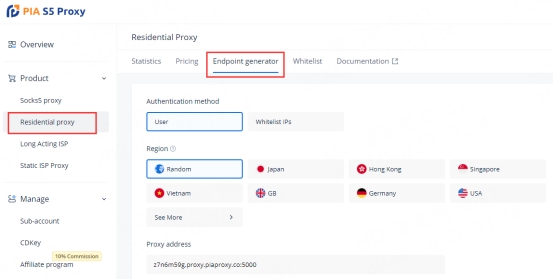
We support authentication of residential proxies by username and password or based on IP whitelist.
Username and password authentication: When you choose this authentication method, you need to fill in the obtained proxy address, subaccount username and password when configuring the proxy.

IP whitelist: When you choose this authentication method, you can fill in the API link or get the IP address and port by opening the link when configuring the proxy.

Please select the authentication method, proxy region, session type, etc. according to your business needs, after which you will see a list of available endpoints that have been generated! Next, open the GeeLark application.
GeeLark Settings
Select "New Profile"
Open the GeeLark client and find the "New Profile" icon.

Configure the configuration file, including proxy settings, and check the proxy functionality to test its availability.
You can set the region, state/province, and city. The host port, username, and password can be copied directly.

Finally, click "OK" to complete the configuration, and then click "Start" to get a cloud phone.


By integrating GeeLark with PIA S5 Proxy, you can easily manage multiple accounts and improve network privacy and security. If you have any questions, please contact PIA online customer service for help.
Last updated
Was this helpful?